
Getting started
Brush works on Shopify Plus stores. On other plans its pages stay read-only.
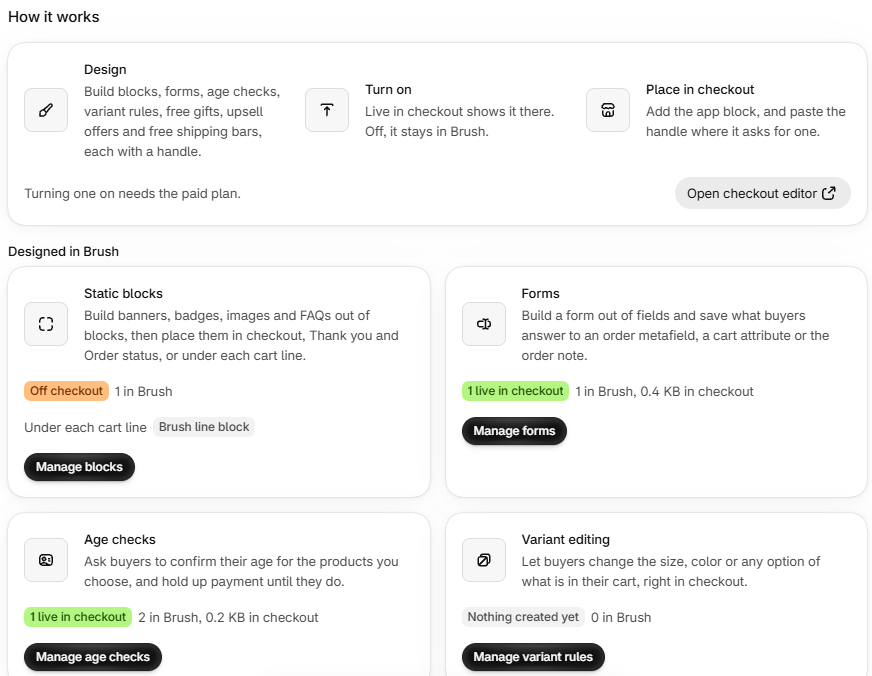
- Start your plan. Open Billing and pick Monthly or Annual.
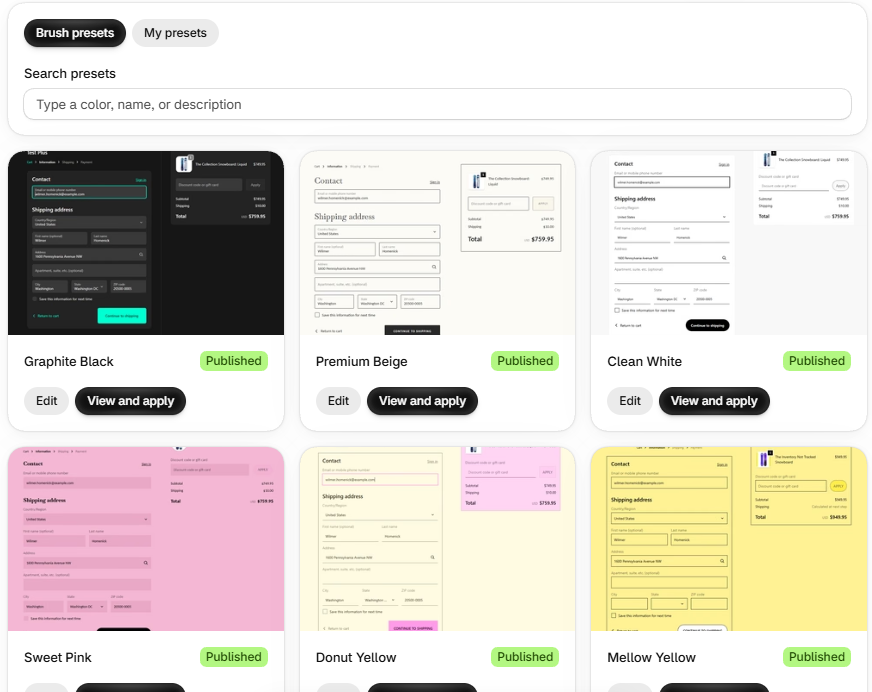
- Style your checkout. In Branding configurations, choose Customize on a configuration, or apply a look from Branding presets. Save, then open Preview checkout.
- Build what you need. In Checkout extensions, create a block, form, age check, gift or offer, often from a template, and turn on Live in checkout.
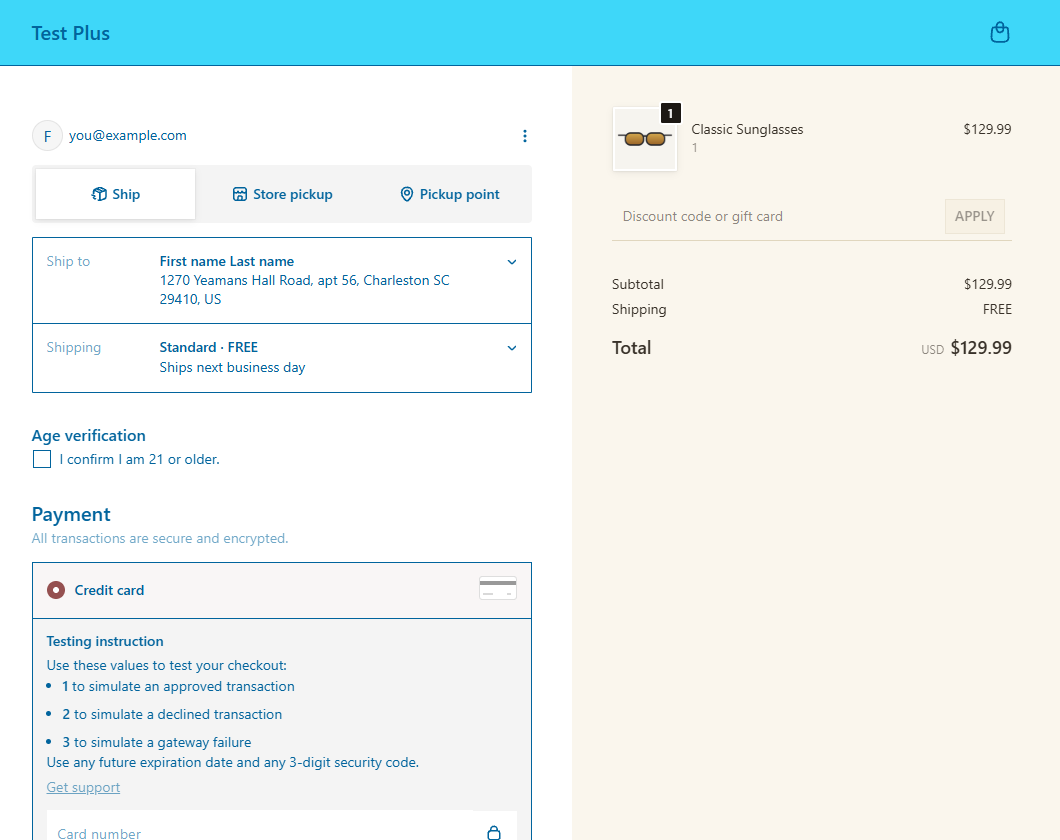
- Place it in checkout. Choose Open checkout editor, add the Brush app block, paste the handle where it asks for one, then save and publish the checkout. See Checkout apps in the Shopify Help Center.
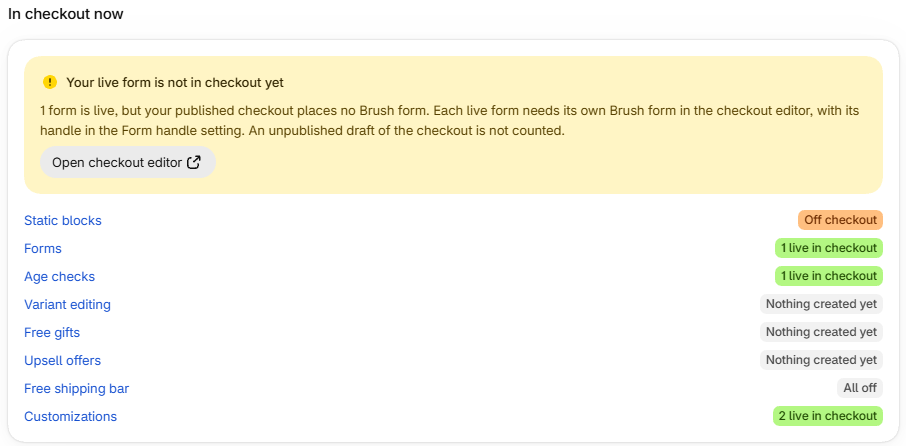
- Check it is live. In checkout now on Home shows what buyers see and warns you about anything that is on in Brush but missing from the published checkout.
Checkout branding
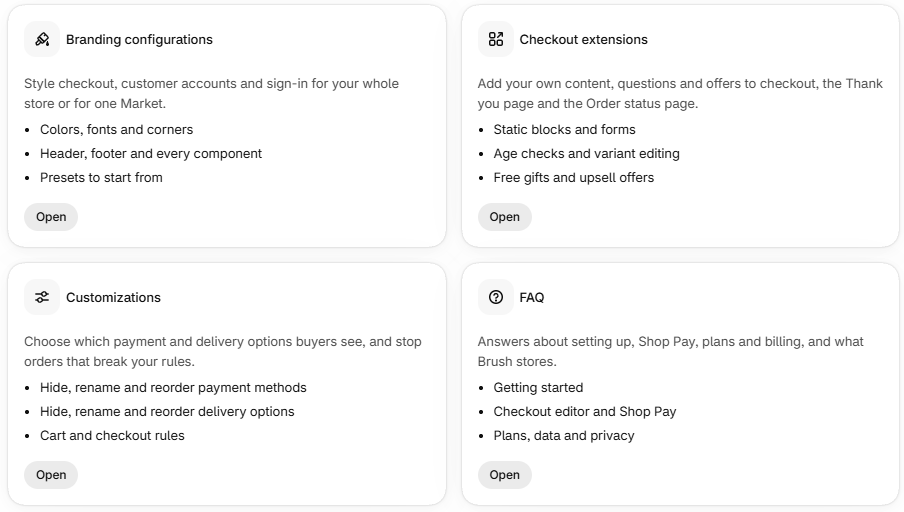
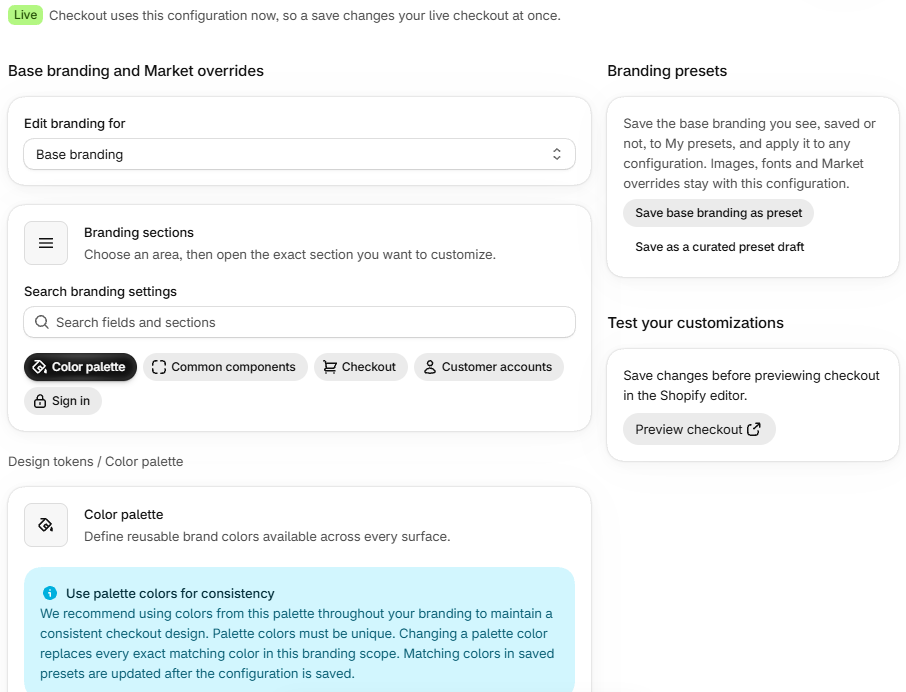
Brush styles checkout, customer accounts and sign-in from one editor, well beyond what Shopify's own checkout editor lets you set.
- Style any configuration. Work on the published one or on any draft, so a new look can be ready before you publish it.
- Override per Market. Change colors, components or images only for buyers in one Market. Anything you leave on its default follows base branding.
- Edit five areas from one place. Color palette, Common components, Checkout, Customer accounts and Sign in, with a search over every setting.
- Reuse your colors. Keep brand colors in a palette, save full color sets as color presets, and copy and paste colors between sections.
- Use your own fonts. Pick from Shopify's font library or upload your own .woff or .woff2 files.
- Start from a preset. Apply a ready-made look or one of your own to any configuration in one step.
- Roll back any save. Every change is in History with its author, and any version comes back in one click.
Set it up
- On Branding configurations, choose Customize on the configuration you want to style.
- Under Edit branding for, pick Base branding or a Market override.
- Change the settings, then choose Review and save.
- Choose Preview checkout to open the configuration in Shopify's checkout editor, and preview checkout, customer accounts and sign-in there. Publish a draft in Shopify's checkout settings when you are happy with it.
What you can style
- Color palette: change a palette color and every exact match in that scope and in your color presets changes with it.
- Common components are shared by checkout, customer accounts and sign-in.
Reset base branding puts a configuration's base branding back to Shopify's defaults and keeps its Market overrides. The reset is in History, so you can restore what you had.
Branding presets
On Branding presets, open a preset with View and apply, pick the configuration and choose Apply preset.
A preset replaces base branding: colors, typography, spacing, shapes and components. Settings it leaves out go back to Shopify's default. Your logo, favicon, background images, fonts and Market overrides stay. To undo, restore the version before Preset applied in History.
Save base branding as preset in the editor saves what the editor shows, saved or not.
History and rollback
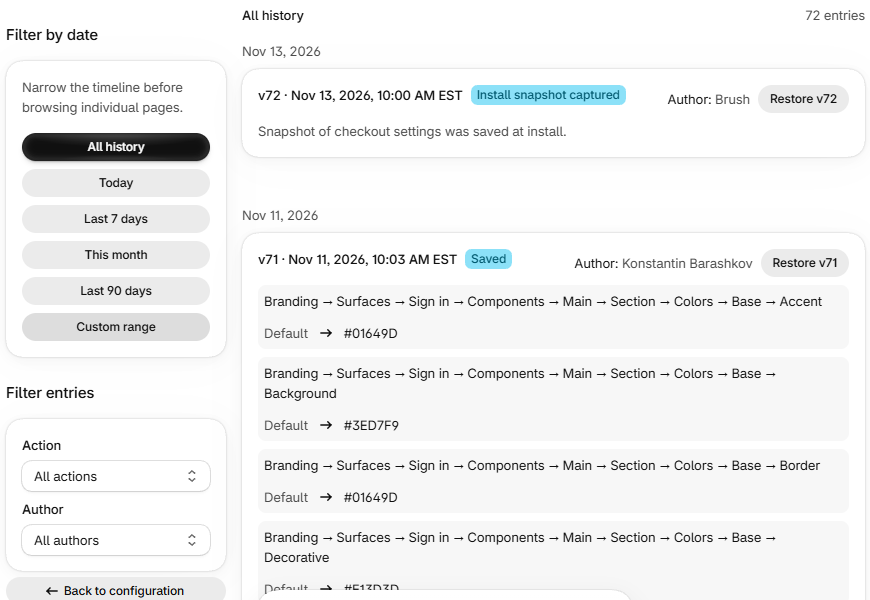
- Restore any version. The restore is a new version, so you can undo it too.
- Go back to before Brush. A snapshot of your original branding is taken at install and can be restored.
- Catch outside edits. A change made in Shopify's checkout editor is recorded as Changed outside Brush the next time Brush saves, so you can return to it.
A restore replaces the whole look of the configuration, Market overrides included, not a single setting. It cannot bring back an image or Shopify font that changed after that version was saved. Brush keeps the latest 500 changes per configuration.
Good to know
- Saving the live configuration changes your live checkout at once. Try changes on a draft first.
- A draft may already be live for some buyers. A rollout, such as an A/B test or a scheduled launch, can serve a draft. Brush cannot see rollouts, so check in Shopify before you save a draft.
- Configurations and Market overrides are created in Shopify. Brush styles the ones you have and never publishes a configuration.
- Check the real preview. Not every change shows in the editor's page layout, so open the checkout preview, and check each Market override in its own Market.
- Keep images in Shopify Files. If a file is deleted, the parts of checkout that used it fall back to Shopify's defaults.
Checkout extensions: how they work
| Kind | App block in the checkout editor |
|---|---|
| Static blocks | Brush static block, or Brush line block under each cart line |
| Forms | Brush form |
| Age checks | Brush age check |
| Variant editing | Brush line item editor |
| Free gifts | Brush free gift |
| Upsell offers | Brush upsell |
| Free shipping bar | Free shipping progress, see Other checkout editor blocks |
Payment, delivery and cart rules are not app blocks; see Customizations.
Set it up
- Design. Create the item, blank or from a template.
- Turn on. Switch on Live in checkout and save. If the kind has a handle, copy it with Copy handle.
- Place. Choose Open checkout editor, then Add app block and pick the block under Brush checkout blocks (see Shopify's checkout editor help). Paste the handle into Block handle or Form handle where asked.
- Save the checkout in Shopify. Only the published checkout counts.
- Check Home. In checkout now warns when something is live in Brush but not placed in the published checkout.
One block per item, or one for all
- Static blocks and forms: each live item needs its own app block with its handle. Add the same block as often as you like, with different handles.
- Age checks, variant editing, free gifts, upsell offers: add the block once; it shows every live item of that kind. A second copy shows everything twice. Upsell offers need the block on each page you want offers on.
Live, Off, Off checkout
| Status | What buyers see |
|---|---|
| Live | The item as you last saved it. Every Save goes to checkout at once. |
| Off | Nothing. Saves stay in Brush. |
| Off checkout | Nothing. The item was live until the plan ended or Brush was reinstalled; its content is kept. |
Preview in checkout editor shows your unsaved draft in Shopify's checkout editor without showing it to buyers. Reload the checkout editor to see it.
History and Recently deleted
- Roll back any item. Restoring a version from History keeps the item's handle and on/off status.
- Undo a delete for 10 days. A deleted item (a live one comes off checkout first) waits in Recently deleted. Restore brings it back turned off, with its handle and History; a restored form keeps its order fields and saved answers.
- Up to 50 items of each kind, not counting Recently deleted. Brush keeps the latest 500 History entries per item.
When the plan ends
When a subscription is cancelled, expires or is declined, Brush takes everything it runs off checkout: items show Off checkout, customizations and checkout rules are turned off, and branding goes back to the snapshot taken at install. Nothing is deleted. To bring items back, choose Turn back on on the list.
Good to know
- Age checks only work if the block is placed. Without Brush age check, checkout asks nothing and lets the order through. Place it in the published checkout and in every configuration a rollout serves, and turn on Include app in Shop Pay for it.
- Placement warnings count blocks, not handles. No warning does not prove every handle is placed, so check handles in the checkout editor too.
- Live content has a size limit. Over it, shown by Size of your live items in checkout, a save of a live item is refused, so turn off or simplify an item. Translations count too.
Static blocks
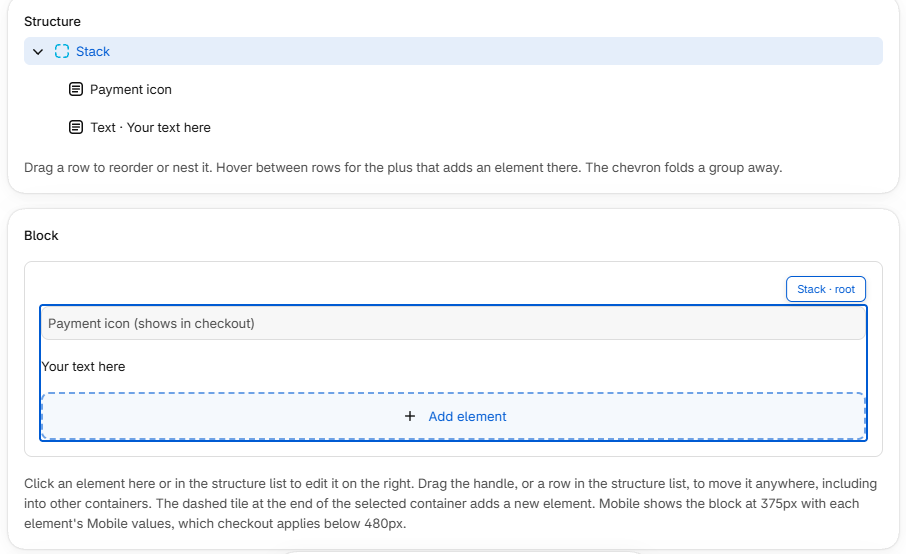
- Build visually. Drag elements on a live canvas with Desktop and Mobile views, nest them in containers and pick every property from a list of allowed values.
- Start from a template instead of a blank block.
- Choose the pages. Show a block on checkout, the Thank you page, the Order status page, or all three.
- Add a note under each cart line. For example, a care note that shows under wool items only.
- Target buyers. Show a block only for certain carts, products, countries, languages, customers, delivery methods or payment types.
- Schedule it. Set the first and last day a block shows, for a sale or a holiday notice.
- Personalize the text. Fill in the store name, the cart subtotal or the buyer's country for each buyer.
- Fit narrow screens and other languages. Give elements their own values on mobile, and translate every text.
Set it up
- In Static blocks, create a block and build it on the canvas.
- In Block settings, set Show on, Display rules and Days.
- Turn on Live in checkout and copy the block's handle.
- In Shopify's checkout editor, add the Brush static block app block on each page where the block should show, and paste the handle where asked. For a block under each cart line, add Brush line block under the cart lines instead and paste the handle into Block handle.
Elements
Blocks are built from the same components as Shopify's own checkout (see the Polaris checkout components). A Link, Button or Clickable can go to an address (https:, mailto: or tel:), open or close a Modal or Popover, and show a Tooltip or Popover on hover.
Values in an element's Mobile group apply while the block is narrower than the Mobile breakpoint (px) in Block settings (the block's own width, not the screen's). To hide an element on mobile only, set Display to none in its Mobile group.
Pages, rules and days
- A block shows only where Show on includes the page and the app block is placed there.
- A line block shows under every cart line on checkout and the Thank you page. Product conditions check that line's product only; every other condition checks the whole cart.
- Display rules take up to 10 groups and 60 rules; see Conditions reference.
- A condition a page cannot answer reads as met: delivery and payment on the Thank you page, and delivery, payment and past orders on the Order status page.
- Days follow the buyer's own calendar, so near midnight it can differ from yours. They apply together with display rules, including Show to everyone.
Placeholders in text
Texts, including Heading, Alt and Accessibility Label, can hold placeholders such as {{shop.name}} or {{cart.totalFormatted}} that checkout fills in for each buyer; the full list opens in the text editor. A placeholder with no value, such as shipping before Shopify has calculated it, shows nothing.
Good to know
- The canvas previews with a sample cart and is for layout only. It does not apply days, and Collapsible details, Payment icon and some icons render fully only in checkout.
- Overlays sit directly under the block's root and need an Id; that is how a button, link or clickable finds them.
- Limits: 50 blocks, 200 elements and 12 levels of nesting per block. All live blocks, with translations, share checkout's size limit.
Forms
Ask buyers your own questions in checkout, such as a gift message, a delivery date or a purchase order number, and save every answer to the order.
What you can do:
- Ask anything. Pick from text, choice, date and other field types; the full list is in the app.
- Sell add-ons. A tick adds gift wrap, shipping insurance or a donation to the cart at the product's own price.
- Save answers where you need them. Choose where on the order each answer goes.
- Require answers. Checkout will not complete until the buyer answers.
- Ask follow-up questions. Show a field only when another answer matches, such as a gift message only when "This order is a gift" is ticked.
- Target buyers. Show the whole form only for the carts and buyers your conditions name; the full list of conditions is in the app.
- Control delivery dates. Set a lead time, block weekdays and block single dates.
Set it up
- In Forms, create a form from a template or an empty canvas.
- Add fields and set each one's Save to. Drag a field onto the slim tile beside another to make two columns.
- Type sample values into the canvas to test follow-up fields, and use Preview in checkout editor to see the draft in Shopify's checkout editor (buyers never see it).
- Turn on Live in checkout and copy the form's handle.
- In Shopify's checkout editor, choose Add app block, pick Brush form, paste the handle into Form handle and save the checkout. An unpublished draft does not count. See Checkout apps and app blocks.
- If a banner says order fields or the checkout rule are not set up, choose Set up.
Where answers are saved
| Save to | What you get on the order |
|---|---|
| Order metafield | An order field named "form name - field label", such as "Gift wrapping - Message", on the order page. |
| Cart attribute | The answer under Additional details. |
| Order note | The order's note (Order note fields only, one per form). |
A key generated from the label stops following the label once the form goes live.
How answers are written:
- Dates are saved as
YYYY-MM-DD. Dropdown and Radio buttons save the option's value, not its label. - Checkboxes saves the ticked values in one answer, separated by commas.
- An answer to a field the buyer could not see never reaches the order.
Required fields
- Hidden fields, and fields in a hidden form, are never required.
- Buyers can still move between steps. When they try to pay, checkout holds the order and shows the message.
- In your own Error message, say where to answer; placeholders such as the field's label are listed in the app.
- The requirement applies only to buyers whose checkout showed the form. To require answers from everyone, place the form in every configuration your rollouts (A/B tests, scheduled launches) serve, turn on Include app in Shop Pay for the Brush form block in the checkout editor, and hide the express checkout buttons on product and cart pages in your theme.
- If the Forms page shows "Required fields may not apply", the checkout rule is failing and lets payment through until it recovers on its own.
Good to know
- Forms show on the checkout page only, not on the Thank you or Order status page.
- Each live form needs its own Brush form block. The Forms list warns when your published checkout has fewer Brush form blocks than live forms, but not which handle each shows, so check them in the checkout editor.
- Name an add-on product's price in its label or help text; buyers see it in the order summary only once it is added.
- When a display rule hides a form, its answers and add-on products leave the cart, and they come back when the form shows again. Add Order needs shipping to show a form only on orders that ship (see Conditions reference).
- Option values and order field names are not translated, and a form's name is part of its order field names, so name forms clearly.
- Text answers are cut at 2,000 characters. Up to 8 live forms can have required fields, and long error messages or many translations can use up that room sooner.
- A deleted form stays in Recently deleted for 10 days. After that, its order fields stay in Shopify and the Forms page offers Remove the empty ones or Remove all, with their answers.
- On uninstall, answers saved as a cart attribute, in the order note, or in an order field you created yourself stay on the order. Shopify deletes the order fields Brush created, so export your orders first if you need those answers.
Age checks
Sell alcohol, tobacco, knives and other age-restricted products compliantly: payment is held until the buyer confirms their age, and every order records what they confirmed.
What you can do
- Cover the products you choose with the usual conditions.
- Ask one age everywhere, or a different age per country, such as 21 in the United States and 18 elsewhere.
- Let buyers confirm with a checkbox, an answer button, or a date of birth that Brush checks against the age.
- Hold up payment until the buyer confirms, even for a buyer who pays right away.
- Let company (B2B) buyers through with Skip B2B buyers.
- See the result on every order, and tag unconfirmed orders with Shopify Flow.
- Rewrite every text the buyer sees, and translate it into your published languages.
Set it up
- On the Age checks page, choose Open checkout editor, then Add app block and Brush age check. Put it where buyers should see it, such as above the payment section, and save the checkout. Add it once: it shows every live age check and takes no handle.
- If a banner says "Age checks are not enforced", choose Set up. This sets up the checkout rule that holds payment. No age check can go live without it.
- Create a check and give it a Name. The order records that name as the check that asked.
- Under Rules, choose the products. Under Age, choose Same age everywhere or Different ages by country. Then choose How buyers confirm.
- Turn it on with Live in checkout.
Ages by country
The first row that names the buyer's country sets the age. The country follows the shipping address, so the age can change when the buyer enters an address.
How buyers confirm
When several checks cover the cart, the buyer confirms once, at the strictest requirement: the highest age for their country and the strictest mode (Date of birth, then Button, then Checkbox), with the wording of that check. The block asks again only when the cart or the shipping country needs more than the buyer confirmed.
Wording
Texts can show the age the cart requires; the placeholders are listed in the app.
What the order records
Each order gets an Age check field, pinned to the order page: the status, the age required, the check that asked, and what the buyer confirmed (age, mode, time, and the date of birth in Date of birth mode).
| Status | Meaning |
|---|---|
AGE_VERIFIED | The buyer confirmed what the cart requires. |
AGE_UNVERIFIED | The cart needed a check and the buyer did not confirm. Happens only when the payment hold failed or skipped a very large cart. |
AGE_PENDING | The block could not see into a product, such as one in an unpublished collection, and guessed the cart needed a check. |
AGE_NOT_NEEDED | The buyer confirmed, then removed the restricted products. |
To tag unconfirmed orders, create a Shopify Flow workflow: trigger Order created, condition Order, Metafields, Age check contains AGE_UNVERIFIED, action Add order tags with age-unverified. Orders from a checkout that never showed the block have no Age check field, so Flow skips them.
Good to know
- Only checkouts that show the block are checked. No check runs for Apple Pay, Google Pay or Shop Pay started from a product or cart page; for Shop Pay, unless you select the block in the checkout editor and turn on Include app in Shop Pay; or for a rollout (A/B test, scheduled launch) that serves a configuration without the block. To ask every buyer, place the block in every configuration, include it in Shop Pay, and hide express buttons in your theme.
- A draft checkout does not count: the block must be in the published checkout. "Age checks are not enforced" also shows when the payment rule is turned off in Shopify under Settings, Checkout. "Age checks may not apply" means the rule failed, and Shopify lets payment through rather than stop the buyer.
- The check runs on the checkout page, not on the Thank you page. Point-of-sale orders are not held, since staff check in person.
- Very large carts skip the check and are recorded as
AGE_UNVERIFIED. - The templates' tags are guesses: match them to your products.
- All live age checks together can use only 2 different tag conditions and 2 different collection conditions (conditions with the same values count once). To cover more, list several tags in one condition, or use type, vendor or product, which have no cap.
Variant editing and the line item editor
Buyers who picked the wrong size or color fix it right in checkout, and change quantities or remove lines, without going back to the cart.
What you can do
- Put a Change link under the products you choose, so buyers swap to another variant in a modal.
- Limit what buyers change, such as only Size, while they keep every other option.
- Offer only variants at the same price, and show or hide sold-out variants.
- Keep the line's quantity and properties, such as an engraving or a gift note, when the variant changes.
- Show minus, plus and remove buttons, with a minimum and maximum quantity, and hide them for chosen products.
Set it up
- In Shopify's checkout editor, choose Add app block, pick Brush line item editor and add it once, under the cart lines. A block under each line doubles the controls.
- On the same block, set the quantity buttons (see below), and save the checkout. An unpublished draft does not count.
- In Brush, under Variant editing, create a variant rule, and choose its products and what buyers can change.
- Turn the rule on with Live in checkout. The block takes no handle.
Variant rules and quantity buttons are independent: use either one or both.
Variant rules
- Products: the usual conditions. Unlike age checks, there is no cap on tag or collection conditions.
- Options buyers can change: empty lets buyers change every option. With Size, a buyer with a Large Red shirt sees Small, Medium and Large, all in Red.
The Size swap template assumes an option named Size: match it to your products' option names.
Quantity and remove buttons
Set these on the Brush line item editor block in the checkout editor:
- Hide quantity for product tags, vendors or product types (comma-separated, whole values, any case).
- Minimum quantity and Maximum quantity for the minus and plus buttons.
- Show remove button removes the whole line, whatever the minimum.
Good to know
- No Change link on bundle lines, subscription or pre-order lines, Brush free gift and upsell lines, products with no other qualifying variant in stock, checkouts that do not allow line changes (such as from a draft order), and products no live rule covers.
- B2B buyers get no link, since their catalog sets the variants. Where Shopify does not identify a company buyer, they get the link and checkout refuses variants outside their catalog.
- Several rules on one product: the rule whose name comes first alphabetically wins, and rules are never combined, even if the winner offers no variant. Name rules in the order you want.
- Hiding quantity buttons does not hide the link: control the link with the rule's products. Bundle lines never get quantity buttons.
- The modal and button texts ship in English, French, Spanish, German and Japanese; other languages show English.
- The block works on the checkout page, not on the Thank you or Order status page.
Free gifts
Reward bigger carts: Brush adds a free product once the cart earns it ("spend $100, get a mug", "buy two coffees, get a mug") and takes it out again if the cart stops earning it. Gifts are priced at zero without a discount, so they never clash with your discount codes or combination rules.
What you can do
- Give one of up to 10 variants: add the first in stock automatically, or let buyers choose one and swap it later.
- Earn the gift by what the cart spends or holds, or who the buyer is; the full list of conditions is in the app.
- Give one for every so many items, such as buy two get one, buy four get two, up to a cap.
- Run a gift between a start and an end day.
- Run several gifts at once: a cart that earns two gets both.
- Rewrite and translate every text the buyer sees.
- Find gift lines in orders and Shopify Flow by their line property.
Set it up
- In Shopify's checkout editor, choose Add app block, pick Brush free gift and save the checkout. Add it once: it shows every live gift and has no settings.
- If a banner on the Free gifts page says Brush offer pricing is not set up, choose Set up. Until then no gift can go live.
- Create a gift, choose Choose gifts to pick the variants, and pick How buyers get it.
- Under Rules, set what the cart must hold or spend. Without rules every cart earns the gift.
- Save and turn on Live in checkout.
How buyers get it
| Choice | What happens |
|---|---|
| The first gift in stock is added | Brush adds the first variant on your list that is in stock, and tries the next if checkout refuses one. |
| Buyers choose one | The block lists the gifts in stock. Nothing is added until the buyer picks one; they can swap it later. |
Each variant counts as a gift: to offer a product in three sizes, pick all three.
Give one for every so many items gives more as the cart grows. The rules must hold exactly one product condition with is: its At least count is how many items earn each gift. Set Gifts per order at most. A cart that earns the gift through another alternative gets one.
Rules
- Spend needs a currency. Brush converts nothing, so each Subtotal condition needs a Currency condition naming exactly one currency, joined with and. Add an alternative per currency, for example Subtotal is at least 100 and Currency is USD, or Subtotal is at least 90 and Currency is EUR. A cart in another currency earns no gift.
- Subtotal and Items in the cart count the buyer's own items before discounts. Gift lines and other Brush offer lines never count; a product added from an upsell offer at its own price does.
- Past orders is 0 means a first order. Guests have no orders and no tags.
- Customer tag: a gift for a signed-in customer's tag shows a moment after checkout loads. To reward what customers spent, tag them, for example with a Shopify Flow workflow on a customer segment.
Schedule: Starts on and Ends on are days in your store's time zone, both included.
Words
Texts take placeholders, such as what is left to spend (shown only with a Subtotal rule); the full list is in the app.
Good to know
- Removed gifts stay out until the buyer presses the add-back button. A reload adds the gift again.
- Sold-out gifts are skipped. If none is in stock, nothing is added.
- Brush never gives more than the gift says. If the gift is not priced at zero or the cart stops earning it, the block takes it out. A second line of the same gift is not free. A discount on the gift line does not remove it.
- Very large carts (over about 100 lines) do not get the gift priced, so checkout takes it out rather than charge for it.
- Gifts work on the checkout steps where the cart can change, not on the Thank you page.
- In orders, a gift is an ordinary line at zero with the product's title and the hidden property
_brush_offer=gift:<handle>. No discount code is recorded, and reports show gift units at zero revenue. - Live gifts and upsell offers together can use only 2 different tag conditions and 2 different collection conditions (same values count once).
Upsell offers
Sell more to buyers who are already paying: show products that go with the cart in checkout, added in one click, and again on the Thank you page, optionally at a percentage off. For example, "add a case with your phone, 10% off".
Upsell offers use the same rules, schedule, translations and limits as free gifts.
What you can do
- Offer up to 10 variants you choose, or Shopify's picks for the cart.
- Take a whole percentage off (1 to 100) the products you choose.
- Show an offer in checkout, on the Thank you page, or both, so each page can offer different things.
- Show 1 to 4 cards per offer, each with a variant selector when there is more than one variant left.
- See what offers sold: in Shopify's discount reports for Thank you sales, and by line property for checkout sales.
Set it up
- In Shopify's checkout editor, choose Add app block and pick Brush upsell. Add it once on each page where you want offers, checkout and Thank you, and save the checkout. It has no settings.
- Create an offer. Under Products, choose What to offer and optionally a Discount. Under Where it shows, tick Checkout, Thank you page or both.
- Save and turn on Live in checkout. If a banner says Thank you discount codes are not set up, choose Set up. Discounts in checkout also need Brush offer pricing, set up from the Free gifts page; without it, buyers who add a discounted product pay full price.
What to offer
| Choice | What buyers see |
|---|---|
| Products you choose | Up to 10 variants you pick, at an optional Discount. |
| Shopify's picks: products that go with the cart | Complementary products from the Search & Discovery app, at their own price. |
| Shopify's picks: products like the cart's | Related products, at their own price. |
Picks are based on the cart's first five products and vary between checkouts.
Checkout and the Thank you page
| In checkout | On the Thank you page | |
|---|---|---|
| Buyer action | One click adds the product to the cart. | The Thank you link (Buy now by default) opens a new cart with the product. |
| Discount | Priced by Brush offer pricing, no code. | The offer's code BRUSH-<HANDLE>, applied by the link. |
| Conditions read | The cart. | The order; Past orders counts the orders before this one. |
| Order shows | A line with _brush_offer = upsell:<handle> at the discounted price. Bought at own price: an ordinary line. | A new order with the code, so discount reports show what the offer sold. |
The discount
- One discounted product per offer, one unit: once the cart holds it, the offer's other products and any extra units cost their own price.
- A code the buyer enters later stacks on the offer's discount, for one line per offer. A buyer who already used a Brush Thank you code in this checkout sees own prices.
- Brush never takes an upsell product out of the cart. If the cart stops meeting the conditions, or the offer is turned off or ends, the product goes back to full price and the buyer sees it.
- Thank you codes are titled "Brush upsell: \<offer name>" and tagged
brush-upsell. Brush creates and corrects them after every change and switches them off, never deletes them, when no live offer needs them. - Any customer can use a Thank you code once, not only the customers the offer targets.
Good to know
- Brush never offers a sold-out variant or one the cart (or order) already holds, and shows each product in one offer only. Several earned offers show under their own headings in the order of their handles, so an earlier offer takes products first. Your own products come before Shopify's picks.
- If you uninstall Brush, the codes stay in Discounts and Brush can no longer switch them off. Codes for offers with no end day keep working, so switch them off or delete them yourself.
Other checkout editor blocks
Two Brush blocks need nothing in Brush: add them in the checkout editor and they work.
What you can do
- Show buyers how much more they need to spend for free shipping, with an optional progress bar, and hide the message once they have unlocked it.
- Let buyers change the quantity of a line, or remove it, right in checkout.
- Set a minimum and maximum quantity buyers can step to.
- Keep the quantity fixed for chosen product tags, vendors or product types.
- Let buyers swap a variant through the Change link of your variant rules.
Set it up
- In Shopify's checkout editor, choose Add app block and pick Brush free shipping progress or Brush line item editor from Brush checkout blocks. Put the line item editor once under the cart lines: one block serves every line.
- Fill in its settings and save the checkout. The block works right away: there is no Live in checkout switch for these two.
Brush free shipping progress settings:
- Free shipping threshold: the cart subtotal that unlocks free shipping, in your shop currency. Until it is set, buyers see nothing.
- Progress message and Unlocked message: use
{{remaining}}for the missing amount. Leave them empty to get Brush's text in the buyer's language.
Brush line item editor settings:
- Hide quantity for products with tags, Hide quantity for vendors and Hide quantity for product types: matching lines get no stepper and no remove button, but keep their Change link.
Good to know
- Free shipping progress compares the cart subtotal with your threshold and does not read your shipping rates. Set the threshold to match the free shipping rate you offer.
- Both blocks show on the checkout page only.
Customizations
Change what checkout offers and allows, for exactly the buyers you choose: hide payment methods for risky orders, rename and reorder delivery options, and stop orders that break your rules. Customizations run in checkout as soon as you turn them on, with nothing to place in the checkout editor.
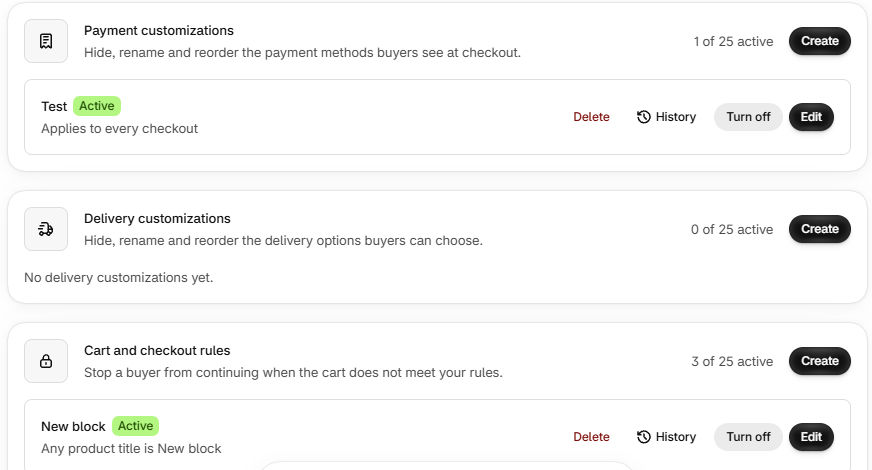
What you can do
- Hide, rename and reorder the payment methods buyers see, for example hide a method for first orders or large carts. Hide only a method's express checkout button if you prefer.
- Set payment terms (with an optional deposit) and send company (B2B) orders for your review before they become orders.
- Hide, rename and reorder delivery options, and hide paid options while a free one is offered.
- Stop a checkout that breaks your rules, such as a quantity limit, with your own message on the cart or on a checkout field.
- Apply a customization to every checkout, or only when your conditions match.
- Read the full History of every customization, roll back to any version, and restore customizations removed by an uninstall or deleted in Shopify.
Set it up
- Open Customizations, pick the kind (Payment customizations, Delivery customizations or Cart and checkout rules) and choose Create.
- For payment and delivery, set Apply to: Every checkout, or Only when these conditions match and add at least one condition. For a rule, add the conditions that block checkout.
- Fill in the changes. For a rule, choose When this runs and write its messages (see below).
- Save, then turn on Live in checkout. Checkout changes at once for every buyer the conditions match.
Cart and checkout rules
- When this runs: Cart stops the buyer from starting checkout, Checkout shows the message while the buyer fills in checkout, Order placed is the last chance to stop the order.
- Where it appears: the cart as a whole or one checkout field, such as email, phone or an address field (not a single cart line).
- Block checkout if Brush itself fails: when the rule cannot run at all, on stops the order and off lets it through.
Example: to allow at most 2 items from a collection, block when Items in collection is at least 3, and state the limit in the message.
Good to know
- 25 active customizations of each kind per store, other apps' included. At 25, turn one off before turning on another.
- Brush always leaves the buyer one payment method, or one delivery option per shipment, unless you turn on Allow hiding every option. Each customization sees only what it hides itself, so two that hide different methods can leave nothing: keep their conditions from matching the same checkout, or do the hiding in one. To stop an order outright, use a rule.
- A customization has one set of conditions for all its changes. For different conditions, create another customization.
- Hide and rename match a method or option by the name buyers see. Carrier-service rates can change their name between checkouts.
- Methods shown as a logo (Shop Pay, Apple Pay, Google Pay, PayPal, Amazon Pay, Meta Pay, Venmo, other wallets) and the gift card field can be hidden, not renamed or reordered. Payment customizations do not run in Point of Sale, and in Shop Pay they reach only the gift card field.
- Select Order placed for every rule that must hold: otherwise an express checkout can skip the steps you chose. A rule that runs only at Cart usually cannot check the address or the buyer yet.
- On very large carts a customization may not run: past roughly 100 separate lines for payment and delivery (about 50 when conditions count items or check a collection), past roughly 200 for a rule (about 110). Payment and delivery then change nothing; a rule follows Block checkout if Brush itself fails.
- After a reinstall, a customization that was on comes back on only if it still passes the checks and its kind is under 25 active.
- Delete removes a customization from Shopify together with its History, and cannot be undone.
Conditions reference
Conditions are the "only if" of Brush: show a banner only to signed-in customers, give a gift only to big carts, hide a payment method only for certain products.
What you can check
You can check the cart (such as subtotal or whether a discount code is applied), its products (such as vendor or collection), the customer (such as past orders or tags), location and language, and delivery and payment. Customizations offer more checks than display rules; the full list is in the app.
Example: give a free gift to carts of 100 USD or more: Subtotal is at least 100 and Currency is USD.
Rules that apply everywhere
- And binds tighter than or. "A and B or C and D" means "(A and B) or (C and D)". Groups (alternatives in offers and customizations) join the same way.
- Facts checkout learns late are not met yet. The shipping address, who the buyer is, delivery and payment methods, shipping cost, tax, product tags and collections arrive as the buyer goes on. Until then a condition on them is not met, is not included: "Shipping country is not US" does not hold before there is an address. For "shipped outside the US", combine Shipping country is set with Shipping country is not US.
- Display rules never hide a block by accident. A condition the page cannot answer counts as met (a payment type rule is ignored on the Thank you page). In offers and customizations, an unanswered condition is not met.
- Several values mean any of them. is holds for any one, is not for none.
- Text ignores capitals. VIP and vip are the same customer tag.
- Money is in the buyer's currency, never converted. An amount needs a Currency is condition beside it, joined with and and naming exactly one currency: always in offers, and in customizations when your store sells in more than one currency. For another currency, add an alternative with its own amount.
- Past orders count the orders before this one. A guest has none, so 0 means a first order.
- Days. Show from and Show until use the buyer's own day and include both days. A gift's or offer's Starts on and Ends on use your store's time zone.
- Products in offers are checked line by line, then the items are counted, so "Product tag is beer" and "Product tag is not alcohol-free" never combine across lines. A free gift given once for every so many items needs exactly one product condition with is.
- Collections count only if published to your online store.
- Languages. Pick one from your store's list or type a code (
ptfor every kind of Portuguese,pt-BRfor Portuguese (Brazil)). A language holds for its regional variants ("French" holds for French (Canada)), not the other way round. An unpublished language matches no buyer. - Markets. There is no market condition: to limit a block or form to some markets, choose them in the checkout editor.
- Under a cart line, the Brush line block checks that line's product for product conditions and the whole cart for the rest.
- Limits. Up to 10 groups, 60 conditions and 50 values in one condition; display rules keep only the first ones. Customizations also allow 50 customer tags, 50 collections and 1 cart attribute key in all. Live free gifts and upsell offers together can use at most 2 different tag conditions and 2 different collection conditions.
Languages
Buyers read your checkout text in their own language, and each of your staff uses Brush in theirs.
What you can do
- Translate every text buyers read into any language your store publishes, up to 20 languages.
- Leave a text blank to get Brush's built-in text, already translated into English, French, Spanish, German and Japanese (other languages get English).
- Show a block or form only in some languages, with a Language condition.
- Use Brush in English, French, Spanish, German or Japanese. It follows each staff member's Shopify admin language; any other language shows English.
New names in Delivery customizations show in one language only.
Set it up
- To offer a new language, add and publish it in Shopify under Settings › Languages.
- In Brush, open the item and scroll to Translations.
- Under Language, choose a language, type the translations and save.
Good to know
- A buyer whose language has no translation sees your own text: nothing breaks or disappears. For a regional language such as fr-CA, Brush first tries fr, then another region of French. Simplified and Traditional Chinese never stand in for each other.
- A translation keeps the original's character limit and may use only its placeholders, such as {{age}}.
- Editing an original text drops its translation until you translate it again.
- Translations count toward the item's size limits, so many languages on a long block or form reach them sooner.
- Messages typed into the checkout editor, such as in Brush free shipping progress, show as typed in every language.
Plans and billing
Without a plan Brush is read-only. Billing goes through Shopify.
| Plan | Price | What you get |
|---|---|---|
| Monthly | $23 USD/month | Every feature. Starts with a 7-day free trial |
| Annual | $100 USD/year | Every feature. About $8.33/month, $176 a year less than paying monthly |
Set it up
- Open Billing.
- Under Plans, choose Start 7-day free trial.
- Approve the subscription in Shopify.
Switching plans later keeps your features on and does not start another trial.
When a plan ends
If the subscription is cancelled, expires or is declined, Brush takes what it runs off checkout. Nothing is deleted: your items, customizations, order fields and saved answers all stay.
- Blocks, forms, age checks, variant rules, free gifts and upsell offers show as Off checkout, with their content saved. Required fields and age checks stop being enforced, and Thank you offer codes are switched off.
- Customizations Brush made are turned off. Other apps' customizations are never touched.
- Branding goes back to the snapshot taken at install.
Brush emails your store's address about what came off. A subscription frozen for an unpaid bill is only on hold: nothing comes off checkout.
To bring things back once you choose a plan again (nothing comes back on its own):
- Checkout extensions: choose Turn back on in the banner on each list, or Turn on beside single items.
- Customizations: turn on the ones you need.
- Branding: open the configuration's History and restore the version you want.
Good to know
- On a development store, approvals use test charges, so nothing is billed.
Security
- Your store access is useless outside Brush. Shopify accepts Brush's access only from Brush's own server. Tokens expire, renew automatically and are revoked the moment you uninstall.
- No buyer data in Brush. Form answers, age confirmations, carts and orders stay in Shopify.
- Encrypted and backed up. The database sits on a private network with an encrypted disk and daily encrypted backups.
- Every request is verified. Everything runs over HTTPS, and Brush checks Shopify's signature on every request.
- Error reports carry no personal data. Tokens, emails, carts and buyer answers are stripped out.
- Approved by Shopify for protected customer data. Every change passes a full set of automated checks before it ships.
Brush's health is checked every 15 seconds, and errors reach the team as they happen.
Data, privacy and permissions
Brush keeps what you build in it and almost nothing about your buyers. It does not sell, rent or share personal data, or use it for marketing.
What Brush stores
- Your blocks, forms, age checks, variant rules, free gifts, upsell offers and presets.
- A copy of each customization Brush makes, so it can put it back if needed.
- The branding snapshot taken at install, and the History of your changes with the staff member who made each one.
- Your plan, and basic store details (name, time zone, contact email).
The only personal details Brush keeps are your staff's and any emails you type into a customization rule. When a customer asks Shopify to erase their data, Brush removes their email from those rules and their History.
What Brush never touches
- Buyer profiles, orders, carts, payment details and passwords. Brush holds none of them.
- Form answers and age confirmations. They are saved on the order in Shopify.
- Your products and languages. Brush reads them for its pickers and never changes them.
- Other apps' customizations.
In your store, Brush changes only what you ask: the branding you save, the blocks and forms you turn on (and the order fields their answers need), and its own customizations and rules.
What uninstalling does
- Shopify removes Brush's blocks, forms, customizations and rules from checkout and cancels your subscription.
- Your saved branding stays: uninstalling does not restore your previous branding.
- The order fields Brush created for forms are deleted by Shopify, and their answers later too. Export your orders first if you need those answers. Answers saved as a cart attribute or in the order note stay.
- Thank you offer codes (BRUSH- plus the offer's handle) stay in Discounts. Delete any you no longer want.
Brush keeps your data for a grace period (usually about two days, at most seven), then deletes it. Reinstall within that time and your items, presets, customizations and History come back:
- Blocks and forms come back Off checkout: choose Turn back on.
- Customizations come back as Removed by uninstall: choose Restore all, or Restore on one.
Limits and requirements
Requirements
- Shopify Plus. On any other store, every page says Shopify Plus required and stays read-only, whatever your Brush plan.
- Published checkout. Blocks and forms show only after you turn on Live in checkout, add the app block in the checkout editor and publish. A draft does not count.
- Custom fonts need a base and a bold file in .woff or .woff2, from Shopify Files.
Where each feature shows
| Feature (app block) | Checkout | Thank you / Order status |
|---|---|---|
| Static blocks (Brush static block, Brush line block) | Yes, also under cart lines | Yes (line block: Thank you only) |
| Forms (Brush form) | Yes | No |
| Age checks (Brush age check) | Yes | No |
| Variant editing (Brush line item editor) | Yes, under cart lines | No |
| Free gifts (Brush free gift) | Yes | No |
| Upsell offers (Brush upsell) | Yes | Thank you only |
| Free shipping bar (Brush free shipping progress) | Yes | No |
- Except static blocks and forms, add each block once (upsell once per page).
When buyers skip your checks
Required form fields and age checks apply only to buyers whose checkout shows the block.
- Shop Pay shows only apps you include: select the block in the checkout editor and turn on Include app in Shop Pay.
- Express checkout from a product or cart page skips checkout: no forms, age checks, gifts, upsells or variant editing.
- Rollouts and A/B tests: place each block in every configuration a rollout serves. Customizations apply to every configuration anyway. See Checkout branding for how Brush saves a rollout's configuration.
Checkouts Brush cannot change
- Draft orders and checkouts that lock lines: no line item editor, variant editing or Add-on product field.
- Bundles, subscriptions and Brush's own gifts and offers: variant editing is off for their lines.
- B2B buyers: the Change link is hidden, since their catalog sets the variants.
Numbers
| Limit | Value |
|---|---|
| Active payment customizations, delivery customizations, checkout rules | 25 each per store, all apps counted (each required-field form or age check uses one rule) |
| Blocks, forms, age checks, variant rules, free gifts, upsell offers | 50 each |
| Live forms with required fields | 8 |
| Variants per free gift | 10 |
| Products per upsell offer | 10 picked, 1 to 4 shown |
| Options per product in variant editing | 3 |
| Languages | 20 |
| History | Latest 500 changes per item |
| Recently deleted | 10 days |
| Customer tags offered in pickers | First 250 (type the rest) |
| Product types and vendors in pickers | 1,000 (type the rest) |
Content size is capped too, translations included.
Gotchas worth knowing
- Late facts. Add Order needs shipping to limit a block to orders that ship. See Conditions reference.
- Signed-in rules. Where Shopify does not share the customer, Signed in, Customer's past orders and Customer tag see a guest.
- Free gifts are priced at zero without a discount, so they never clash with your discount combinations. A buyer who removes a gift gets it back only with Add it back.
- Previewing branding: not every change shows in the editor's page layout, so open the checkout preview itself.
- Saving a draft a rollout serves changes what its buyers see at once.